Monday, July 4, 2011

OpenERP gEdit Plugin / Snippets

Hello all,


OpenERP Gedit (Text Editor) Snippets To build or customize business applications in very less time for Open ERP.
Using the this snippet with your gEdit enhances your Development experience far far better with OpenERP.


To see the Project Home : Openobject-gedit Snippets
You can download same Snippets for latest version (trunk) of the OpenERP by pulling the branch 
e.g.
bzr branch lp:openobject-gedit
 
Hope this will be helpful to you
Regards
JAM

OpenSource ERP Trends - Chart

When Five Enterprise solution out together to see who is doing good the result found as below
(OpenERP, Openbravo, Compiere, OFBiz, Opentaps)

We can clearly see that compiere has been dominating market from long now with the rise of other strong enterprise solution it going down, while OpenERP seems doing Great :)

Thursday, June 2, 2011

Open Source Tool for graphic design database to PostgreSQL


pgDesigner is an open source program for graphic design database to PostgreSQL, and Great news is it runs only on Linux operating system.

How to install it :
  1. Go to synaptic Manager abd find the package "pgDesigner" and install it.
  2. Applications > Programming > PdDesigner and Run it.

How to Import existing db stuff:


Project: Create a Project importing structure from a database (reverse-engineering)

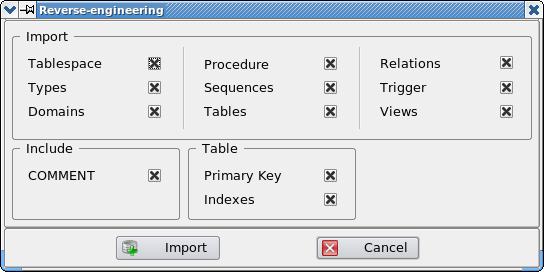
Selecting the item under the file menu, you can start the process of loading the structure from an existing database, this PostgreSQL on a server (local or remote). Before you make the connection, there is a window in which to determine which types of imported items. The feature loads all the objects related to which the connection is made, discarding all other elements even if present on the same database (eg system objects). Depending on the version of the PostgreSQL server in use, it is possible that some items are not available, regardless of the selection made in the settings loading.

The figure below shows the dialog box for setting the parameters of loading:


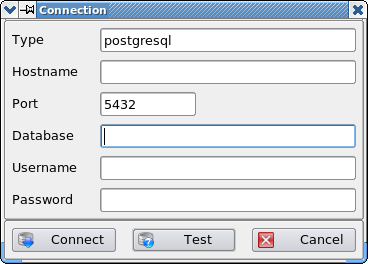
The login window allows you to specify the data required for connecting to the database server. Except password, all settings are saved in the configuration file of the program, and restored the next access. As shown in the figure below, the window provides the opportunity to enter all the parameters useful for the connection. According to the configuration of the server, some of these data can not be necessary or defer the Classic PostgreSQL. Through the Test button is unable to verify the correctness of input parameters, while the Connect button connects and start the process of loading. The Cancel button allows you to cancel the procedure, in this case the project is eliminated.


During loading from the database will see a progress bar, which will show the progress in real time. Once started, it is not possible to cancel loading, it is necessary to wait until the end of the process.

and their you got Done
Now you can create various port from and crate ERD kind of Digram or you can use Auto mated report like pde, html report

for more visit : http://pgdesigner.sourceforge.net/en/index.html
Hope this will help you
Regards

Sunday, March 13, 2011

Generating ER Diagram from Postgresql on ubuntu

Generating ER Diagram from Postgresql on ubuntu

Their are two ways that you can do it
1) You can create .png which is shown on step 4
2) Or else you ca use .dia file in Dia which is more convince
Step 1 to 3 is Common 4 and 5 are optional to each other as mention above

Installation Step :

* 1st step:
Install postgresql_autodoc from synaptic manager first
+Link to AutoDoc Home Page : http://www.rbt.ca/autodoc/

* 2nd step:

jam@jam-desktop:~/Desktop/test$ postgresql_autodoc -h localhost -d mydb -u=jam --password=jam

-h Hostname where server is running (e.g.: localhost)
-d DatabaseName (e.g.: mydb)
-u Postgres User (e.g.: jam)
-p Postgres User password (e.g.: jam)

The above command will generate lots of files in different format (dia, html, dot).
Of particular interest will be the dot file which can be used to create any kind of image file (gif, png, jpeg, etc.)

* 3rd step:

Install Graphviz Utility :
jam@jam-desktop:~$ sudo apt-get install graphviz
+ Link to graphviz : http://www.graphviz.org/

* 4th step:

The dot utility will allow you to convert this mydb.dot file into a png file
+ jam@jam-desktop:~/Desktop/test$ dot -Tpng mydb.dot > mydb.png

* 5th step:

Or else you can Directly Use the .dia file to with Dia and Cutmize the Vie to Output with your requirements

Hope this will help you
Regards